
Product options — also known as modifiers — let customers personalize their orders. Whether it’s choosing a side dish, picking a spice level, or adding extra toppings, product options give customers the flexibility they expect while keeping your operations structured. You can create brand-new options from scratch or reuse existing ones across multiple products.

Add or Create Product Options

1

Go to the Products section

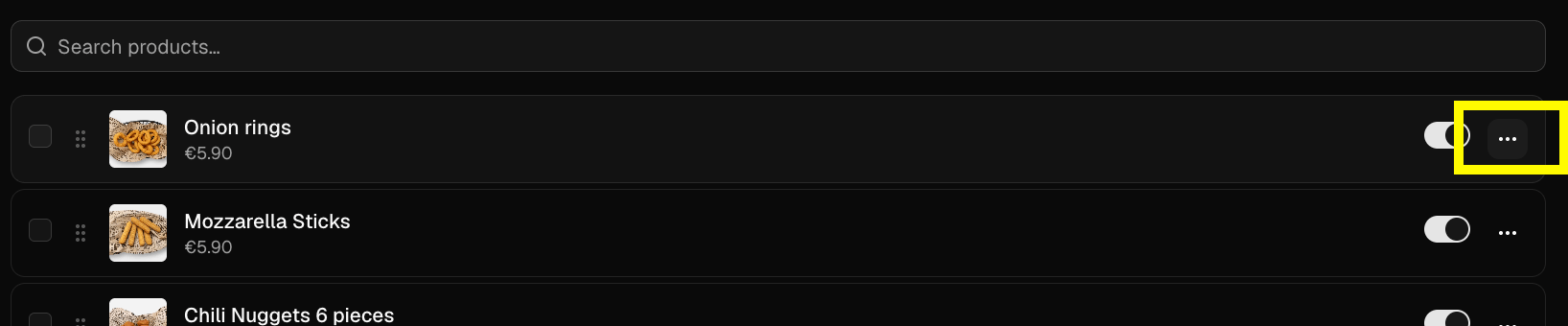
In the left sidebar of the Munchi Dashboard, click Products to open the product management area.
2

Open a product for editing

Find the product you want to add an option to and click Edit to open it.
3

Navigate to the Product Options tab

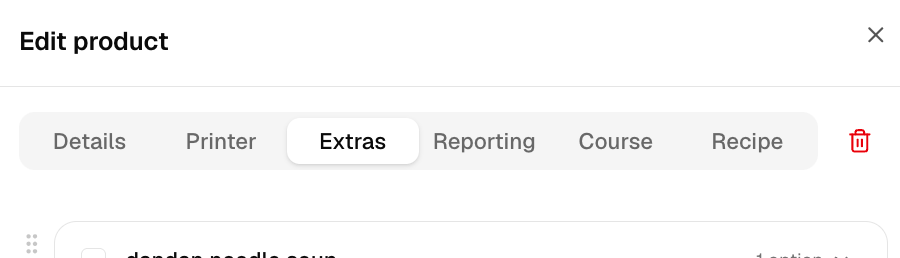
Inside the product editor, swipe or scroll through the available tabs until you find Product Options, then click it.
4

Add an existing option to this product

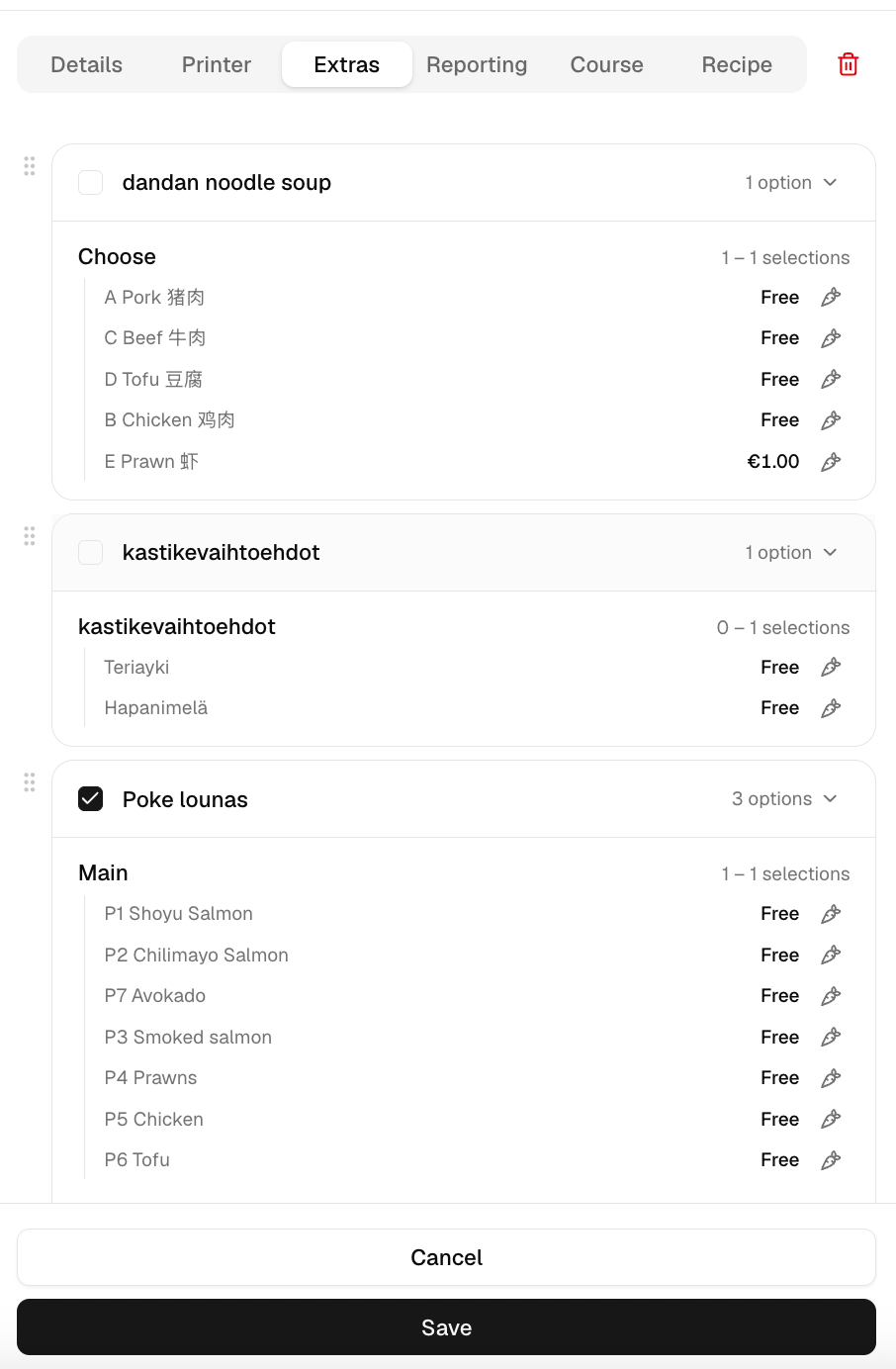
If you’ve already created options for other products, they’ll appear in the list here. To attach an existing option to this product, simply click the checkmark next to it. The option is now active for this product.
A filled checkmark means the option is selected and active for this product. An empty square means it is not attached — click it to activate.
5

Create a new product option

To build a new option from scratch, click Add product option and give it a name.
Note: This name is internal and not visible to customers. Use it to help you tell options apart in the dashboard — for example, “extra toppings pizza” or “extra toppings burgers”.
6

Define your option's details

Click on the newly created option to configure it:
  • Name visible to you — The internal label you set in the previous step.
  • Name visible to customers — The label customers will see on the ordering platform. Use customer-friendly language such as “Choose one side” or “Add extras”.
  • Suboptions — These are the individual choices within the option (e.g., “Extra cheese” or “Spicy”). To add a suboption, click Add suboption, type the suboption name, and click the + icon. Repeat for each choice you want to offer.
All changes to product options are saved automatically — there is no separate save button to click.
7

Confirm the option is assigned to the product

Before leaving the product editor, double-check that the checkmark next to your option is selected. If the checkbox is empty, the option will not appear for that product on any ordering channel.