

1
Go to the Products section
In the left sidebar of the Munchi Dashboard, click Products to open the product management area.
2
Open a product for editing
Find the product you want to add an option to and click Edit (from the three dots on the left side) to open it.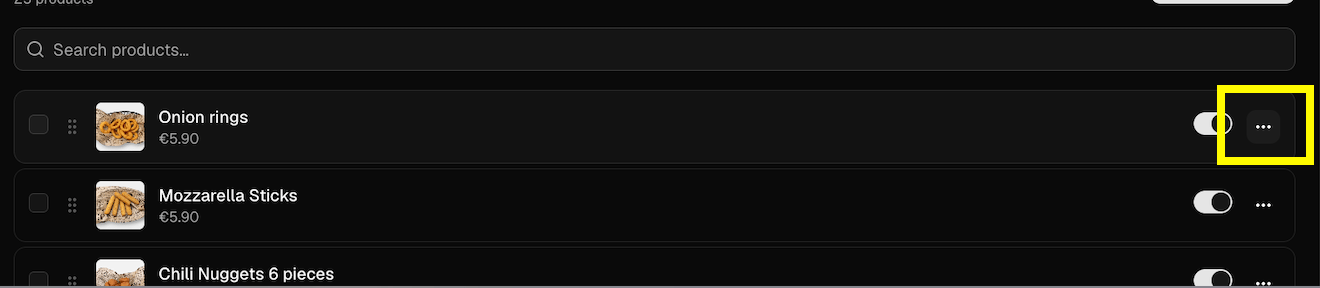
3
Change the product category
In the Details tab, click the Category field.Select the new category or subcategory where you want the product to appear.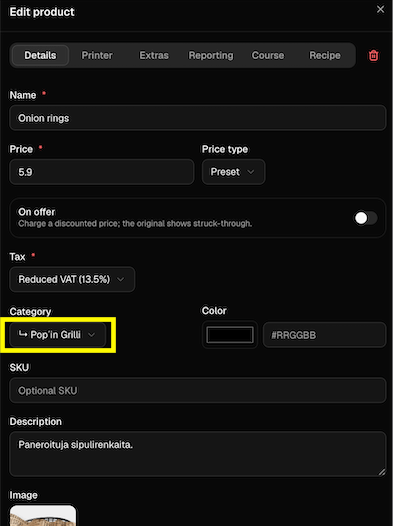
4
Save your changes
Click Save to update the product.The product has now been moved to the selected category or subcategory.
Note: If you don’t see the product in its new location immediately, refresh the page. The product list will update and display it in the selected category.