

1
Connect your computer to the restaurant's Wi-Fi
Connect your computer to the same Wi-Fi network that the label printer will use.You can find the network name and password on the router or from your internet provider. 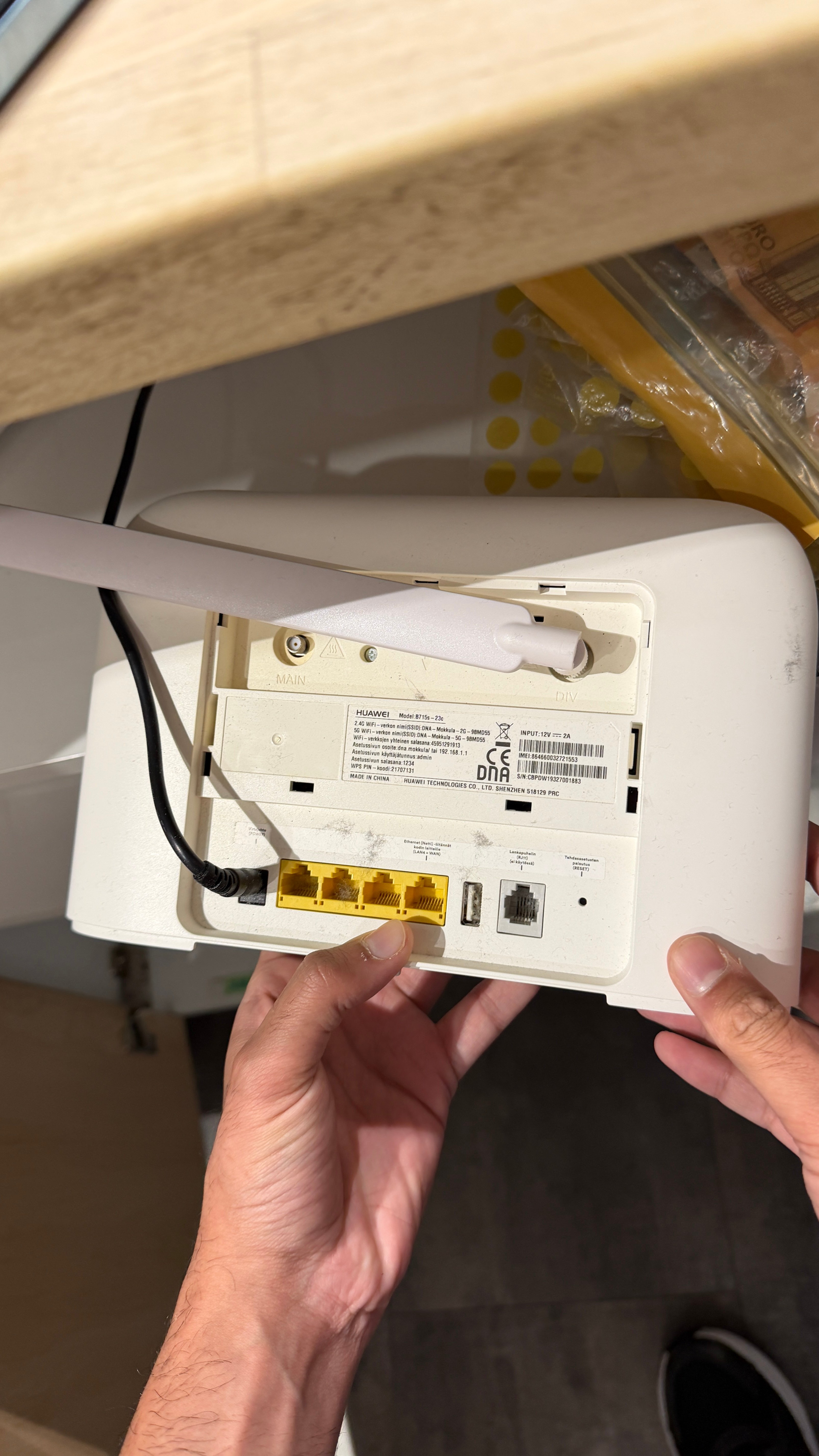
2
Open the router settings
Find the router’s IP address (for example, 192.168.1.1). This is mentioned in the router. Enter the IP address into your web browser and press Enter.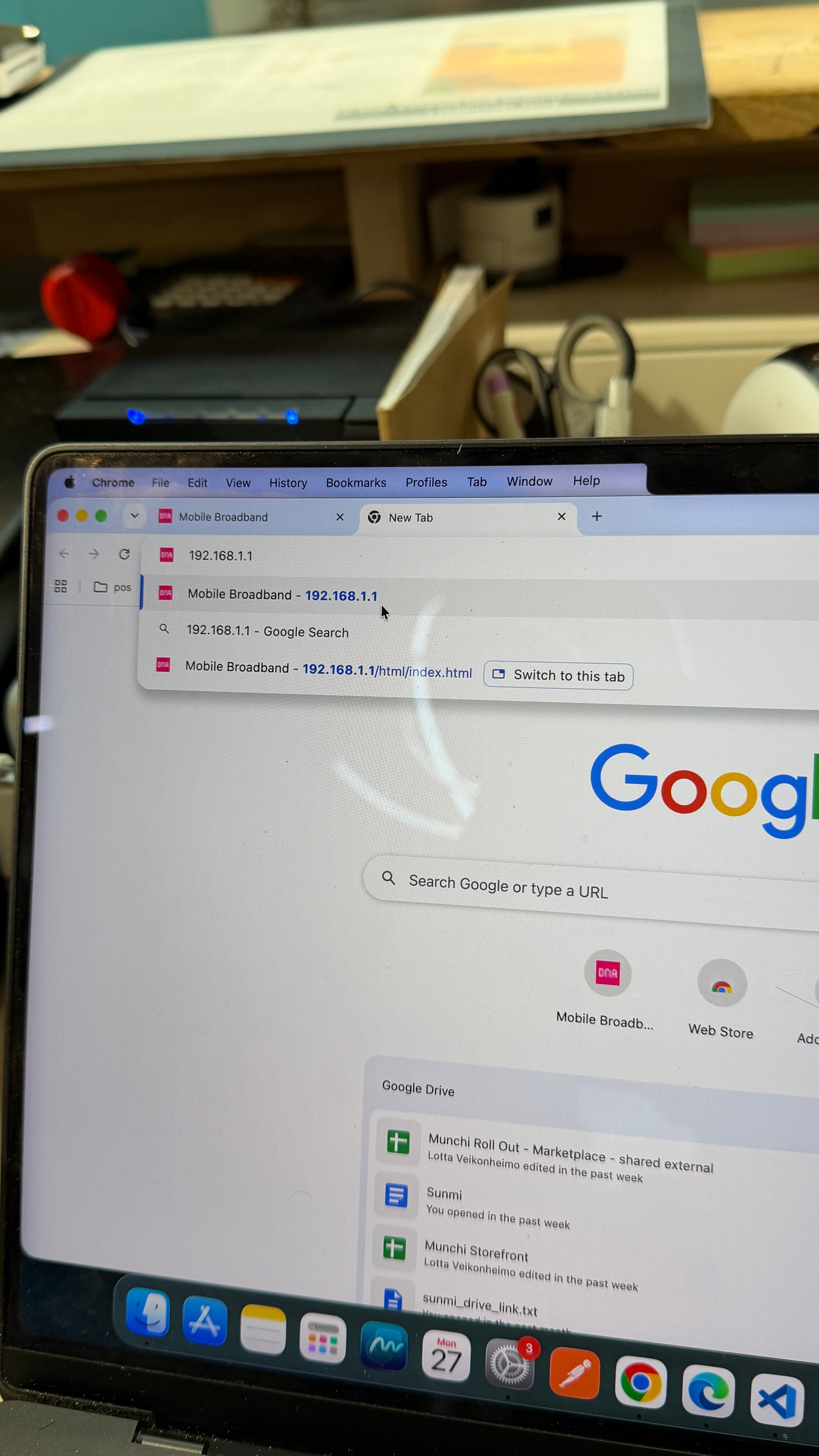
3
Log in to the router
Sign in to the router’s administration page using the router’s login credentials.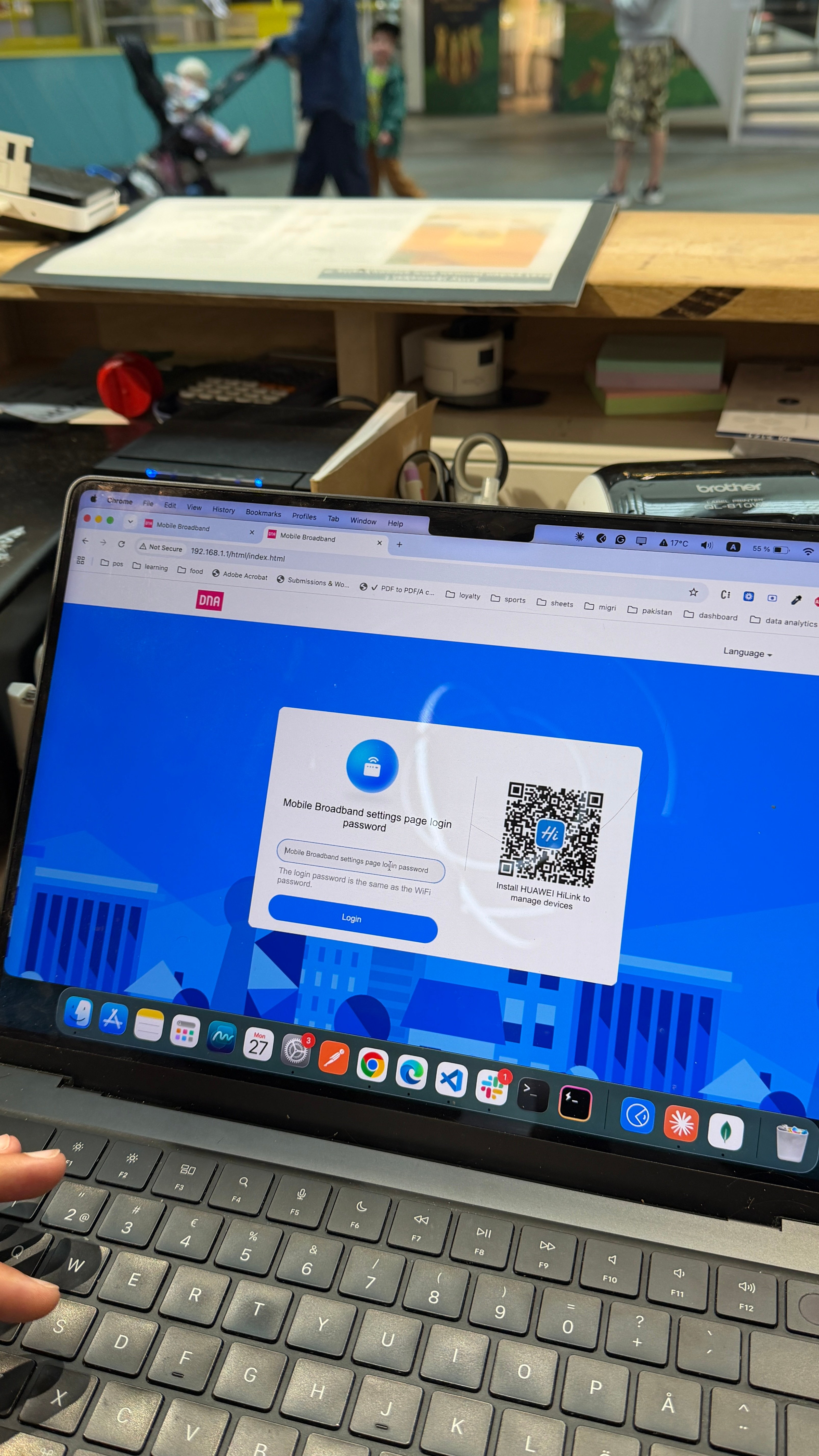
Note: the login password is the same as the Wi-Fi password.
4
Disable the 5 GHz Wi-Fi network
In the router settings, open Wi-Fi Settings.Turn off the 5 GHz Wi-Fi network, leaving only the 2.4 GHz network enabled.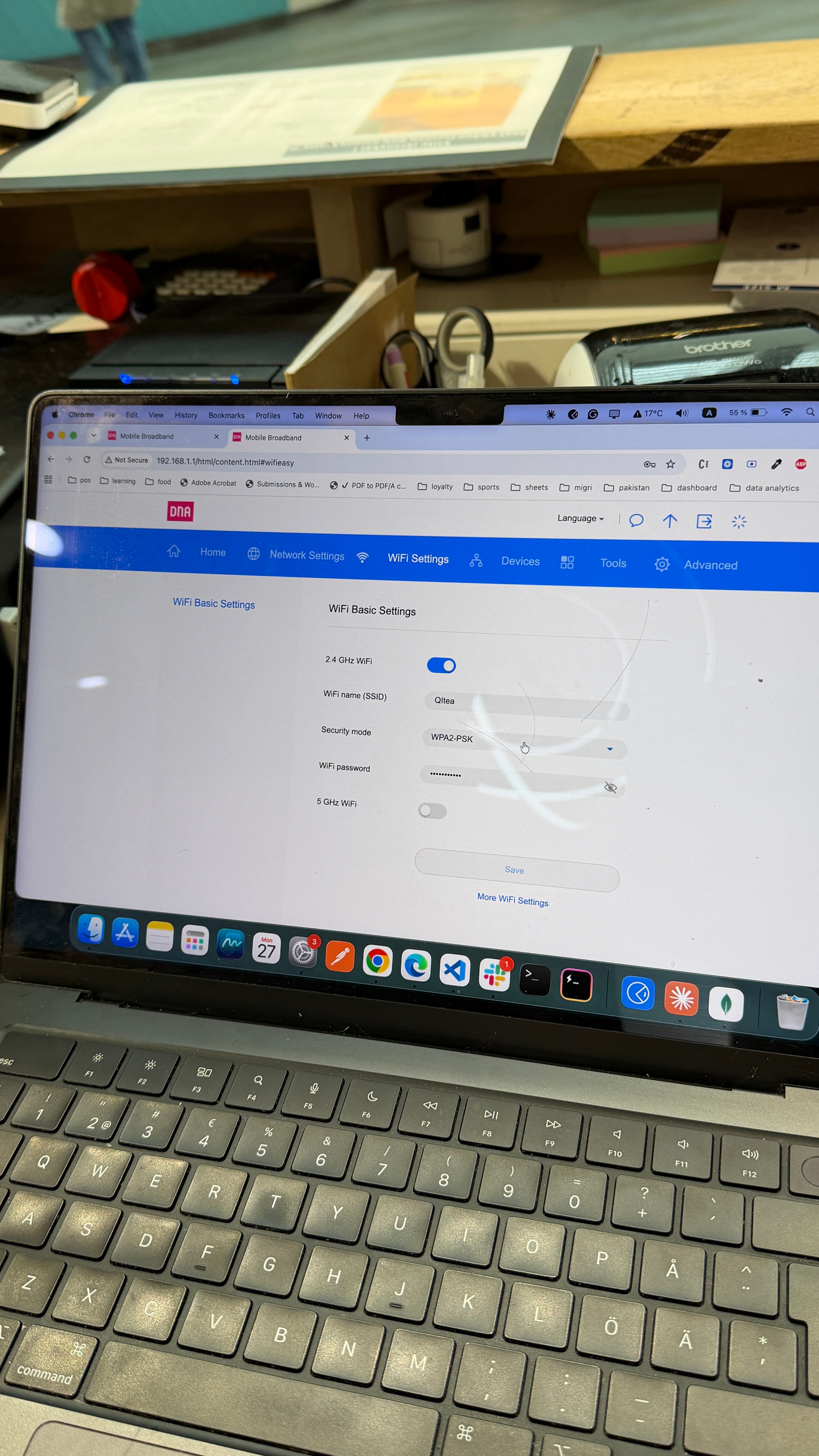
5
Set the Wi-Fi channel
Go to: Advanced → Wi-Fi Advanced SettingsFind the Channel setting and change it to 11.Save your changes.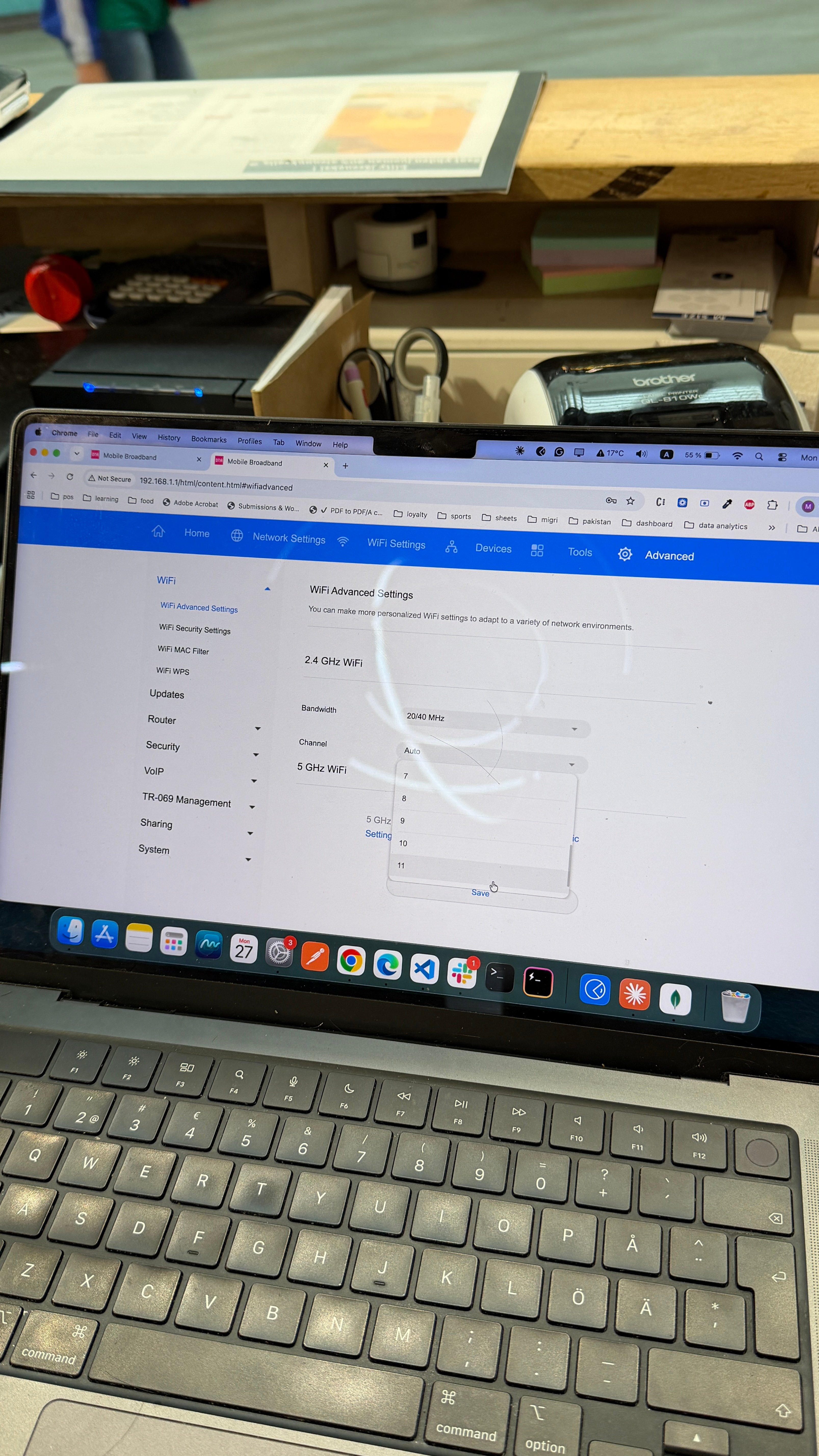
6
Configuration complete
Your Wi-Fi network is now configured for the best compatibility with the label printer.Your network should have: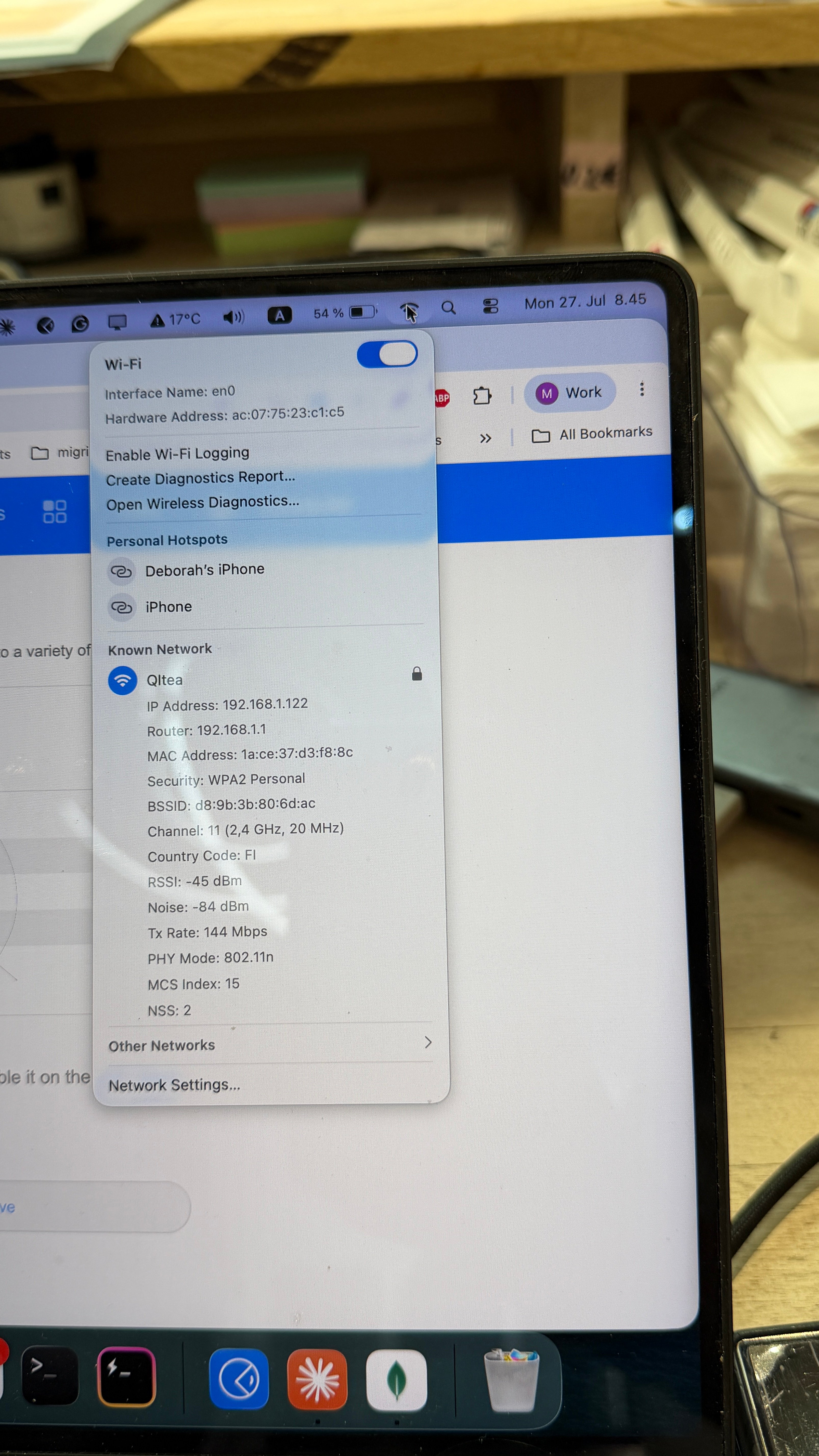
- 2.4 GHz Wi-Fi enabled
- 5 GHz Wi-Fi disabled
- Wi-Fi Channel set to 11