

- When the reward is offered
- What it takes off the price
- Where it is offered (which branches)
Loyalty Commerce currently works on the self-service kiosk only. When you create a rule, tick Kiosk and leave the other channels unticked.
1. Open a loyalty reward
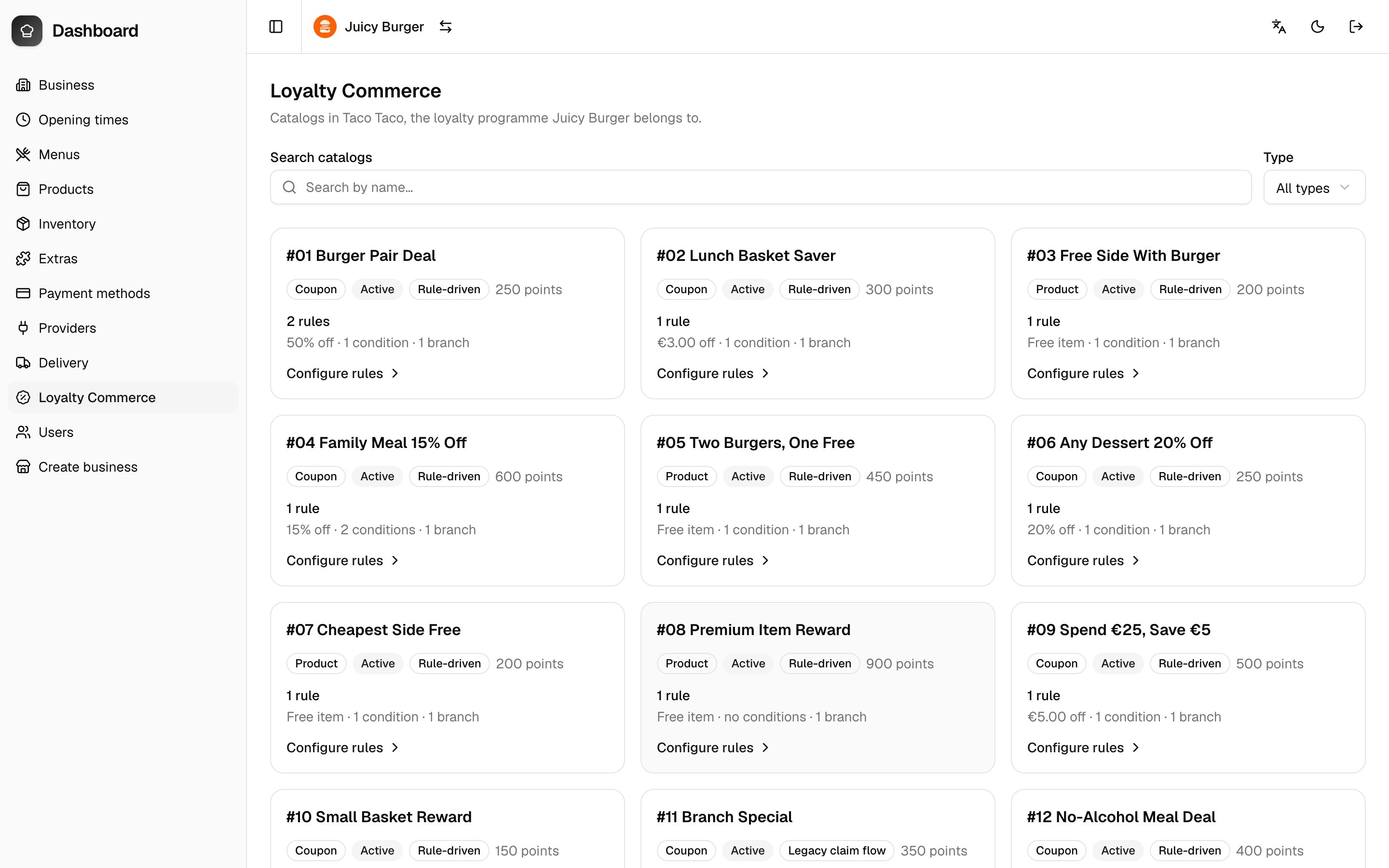
- In the Munchi Dashboard sidebar, choose Loyalty Commerce.
- You’ll see the rewards (catalogs) in your loyalty programme. Each card shows the reward name, whether it is a Coupon or a Product, its points price, and a short summary such as
50% off · 1 condition · 1 branch. - Use Search catalogs or the Type filter to find a reward.
2. Add a Commerce Rule
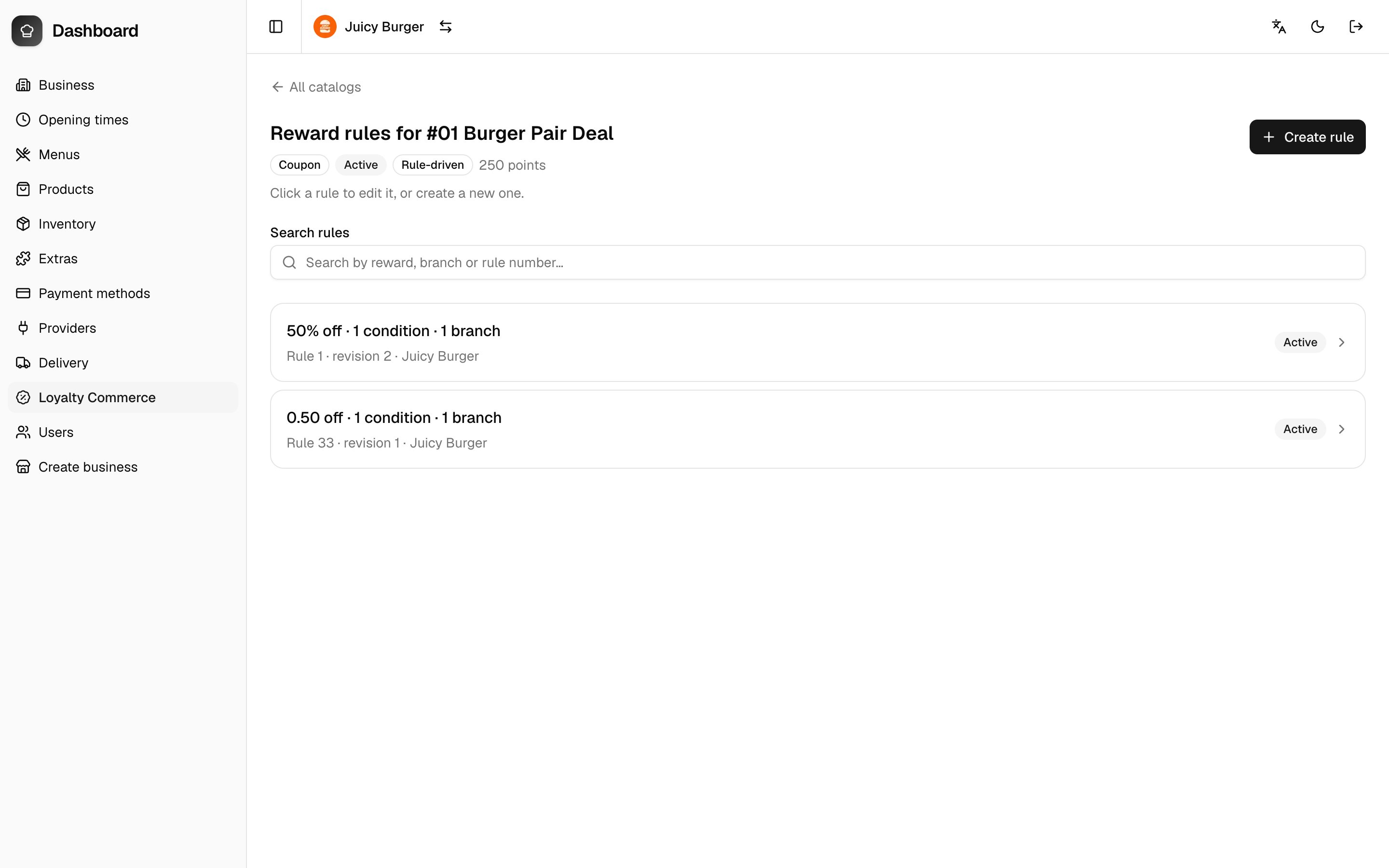
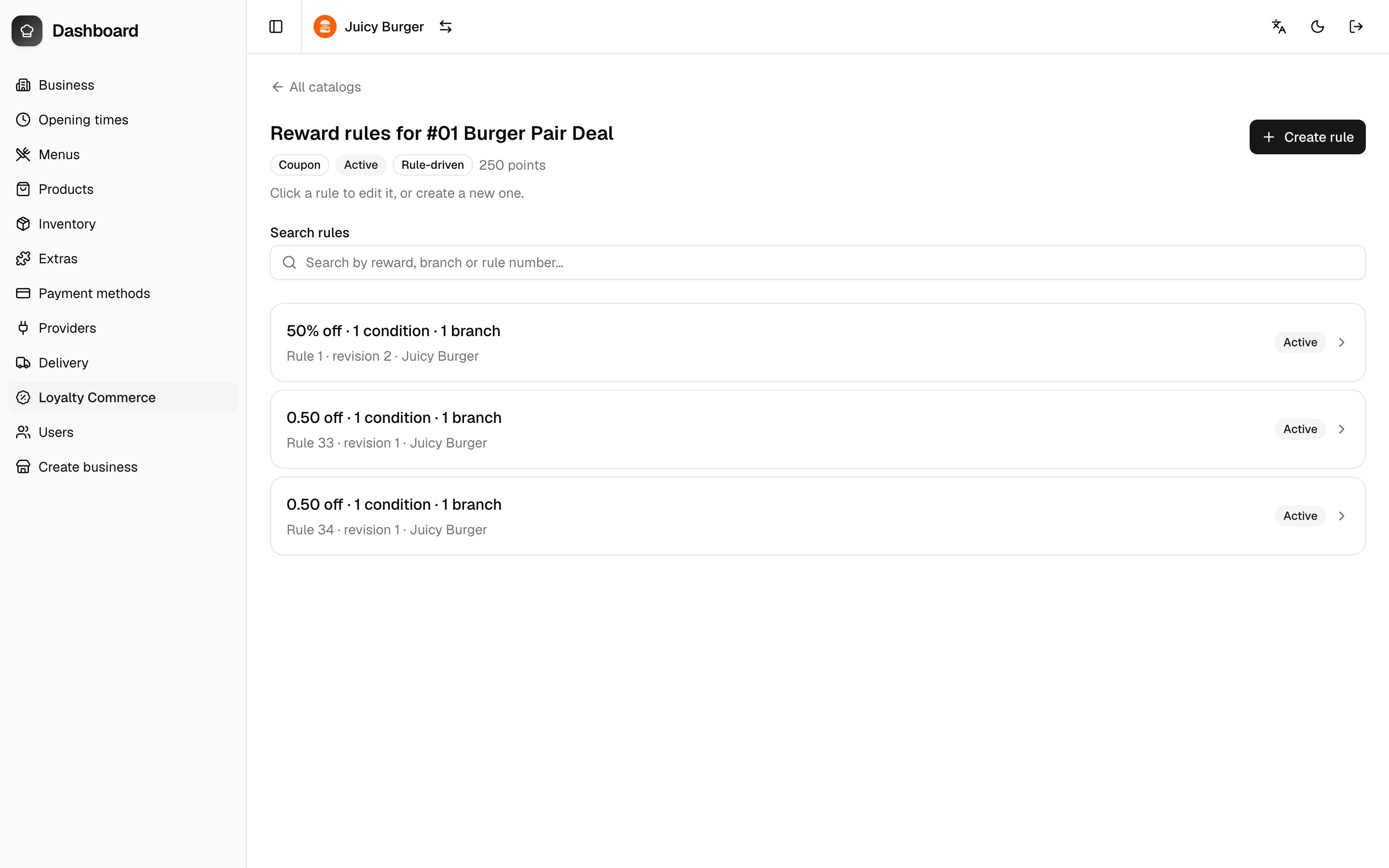
- On the reward you want, click Configure rules. You’ll see any rules the reward already has.
- Click Create rule to open the rule editor.
3. Choose where the rule applies
Under Channels, tick Kiosk. The reward is only offered in the channels you tick. The list also shows POS, Online ordering and Mobile app. Leave those unticked.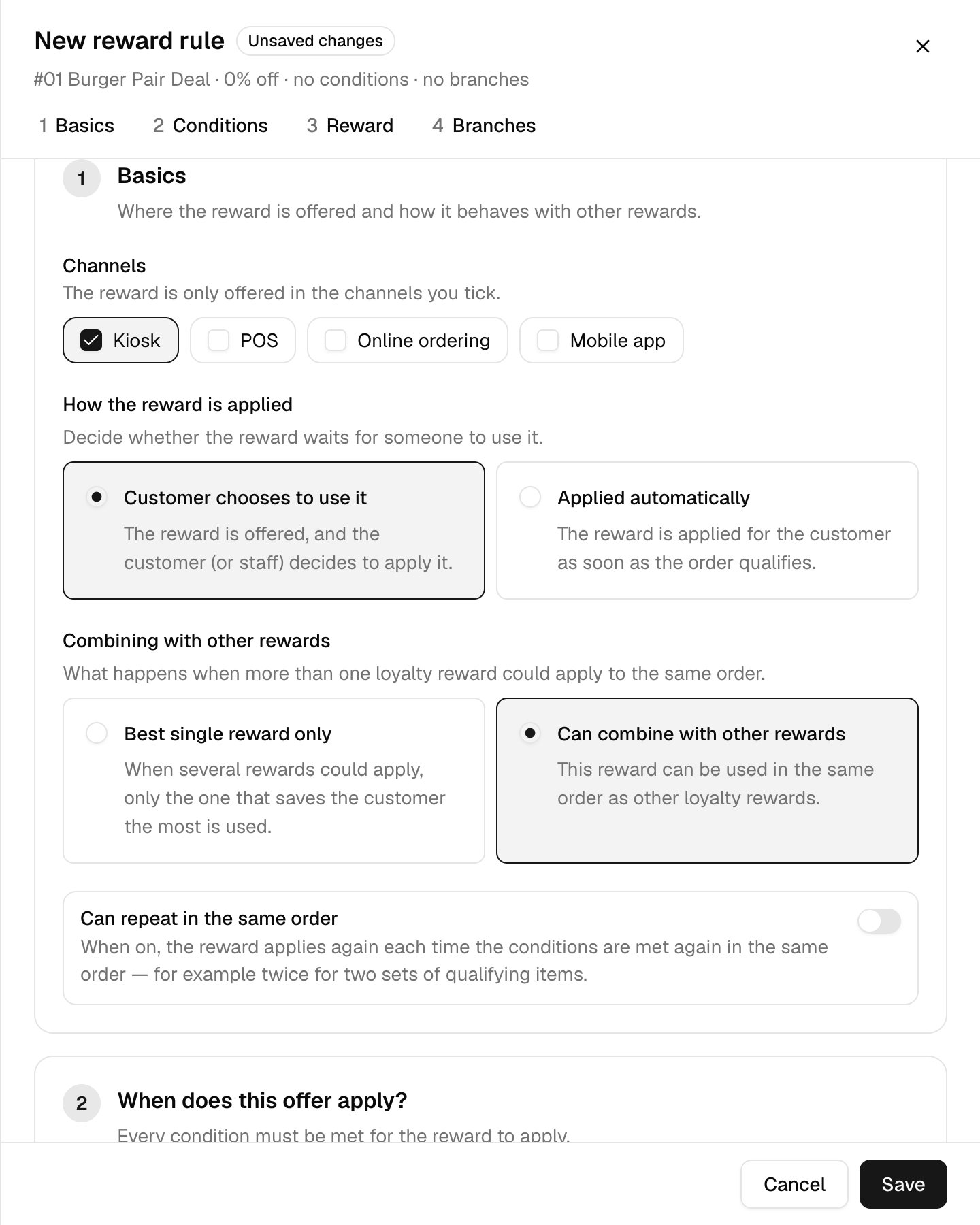
4. Choose how the reward is applied
Under How the reward is applied, pick one:- Customer chooses to use it — the reward is offered, and the customer decides to apply it.
- Applied automatically — the reward is applied as soon as the order qualifies.
5. Choose whether rewards can combine
Under Combining with other rewards, pick one:- Can combine with other rewards — it can be used in the same order as other loyalty rewards.
- Best single reward only — when several rewards could apply, only the one that saves the customer the most is used.
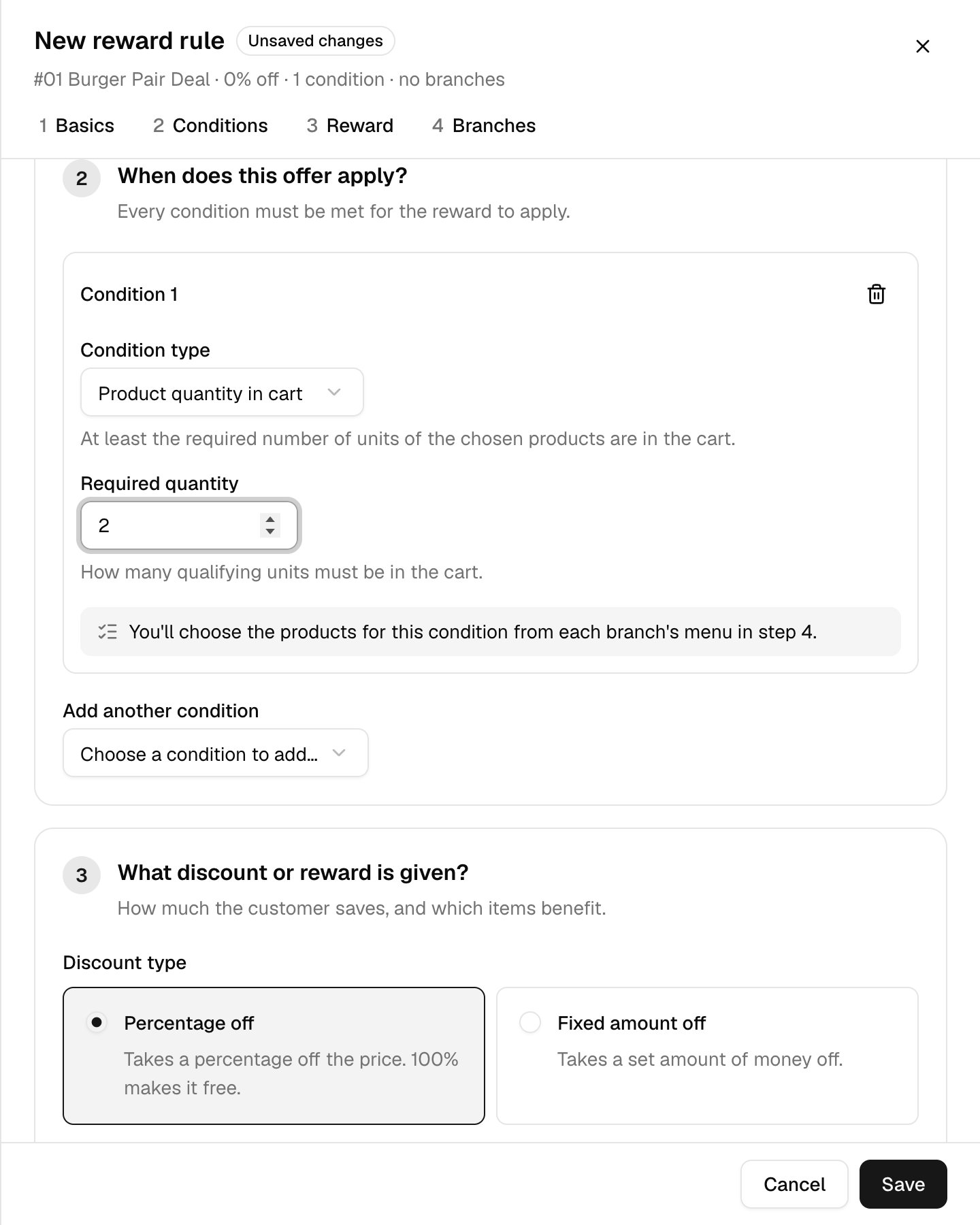
6. Add conditions
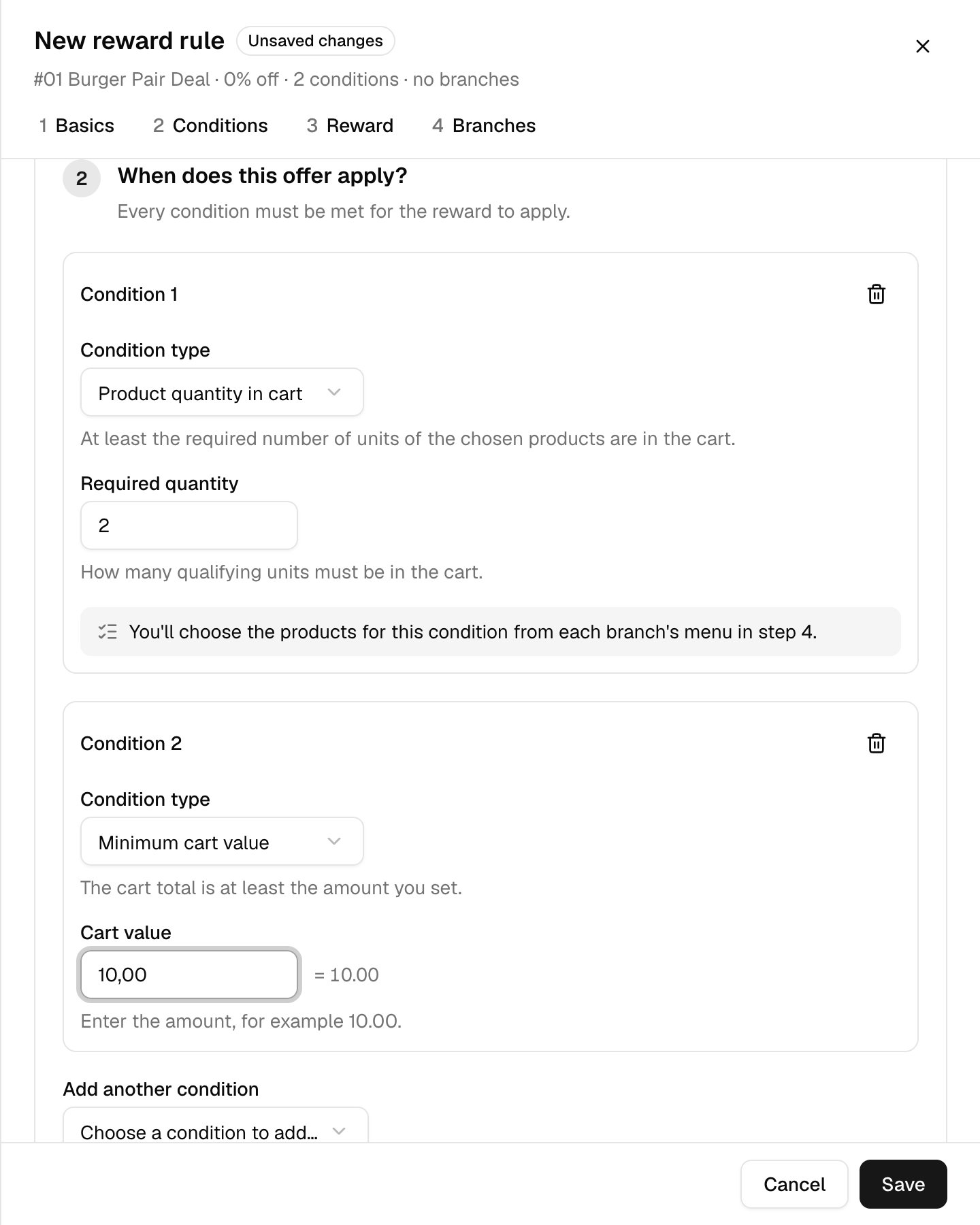
Step 2 is When does this offer apply?- Quantity conditions add a Required quantity box.
- Cart value conditions add a Cart value box. Type the amount, for example
10.00or10,00. The page shows what it read next to the box (= 10.00). - You pick the actual products or categories later, in step 4, because every branch has its own menu.
- Use Add another condition to add more. A rule needs at least one condition.
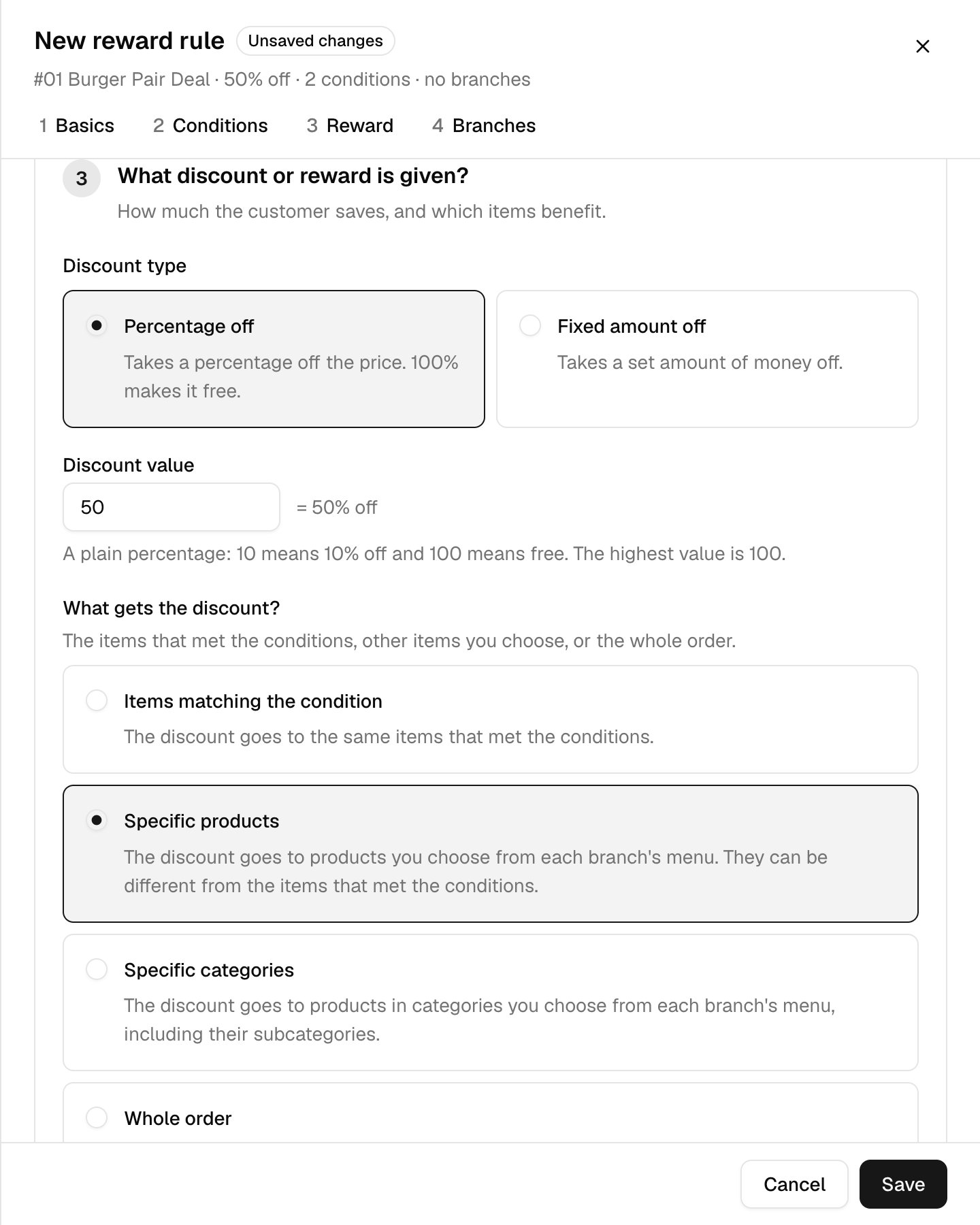
7. Set the discount
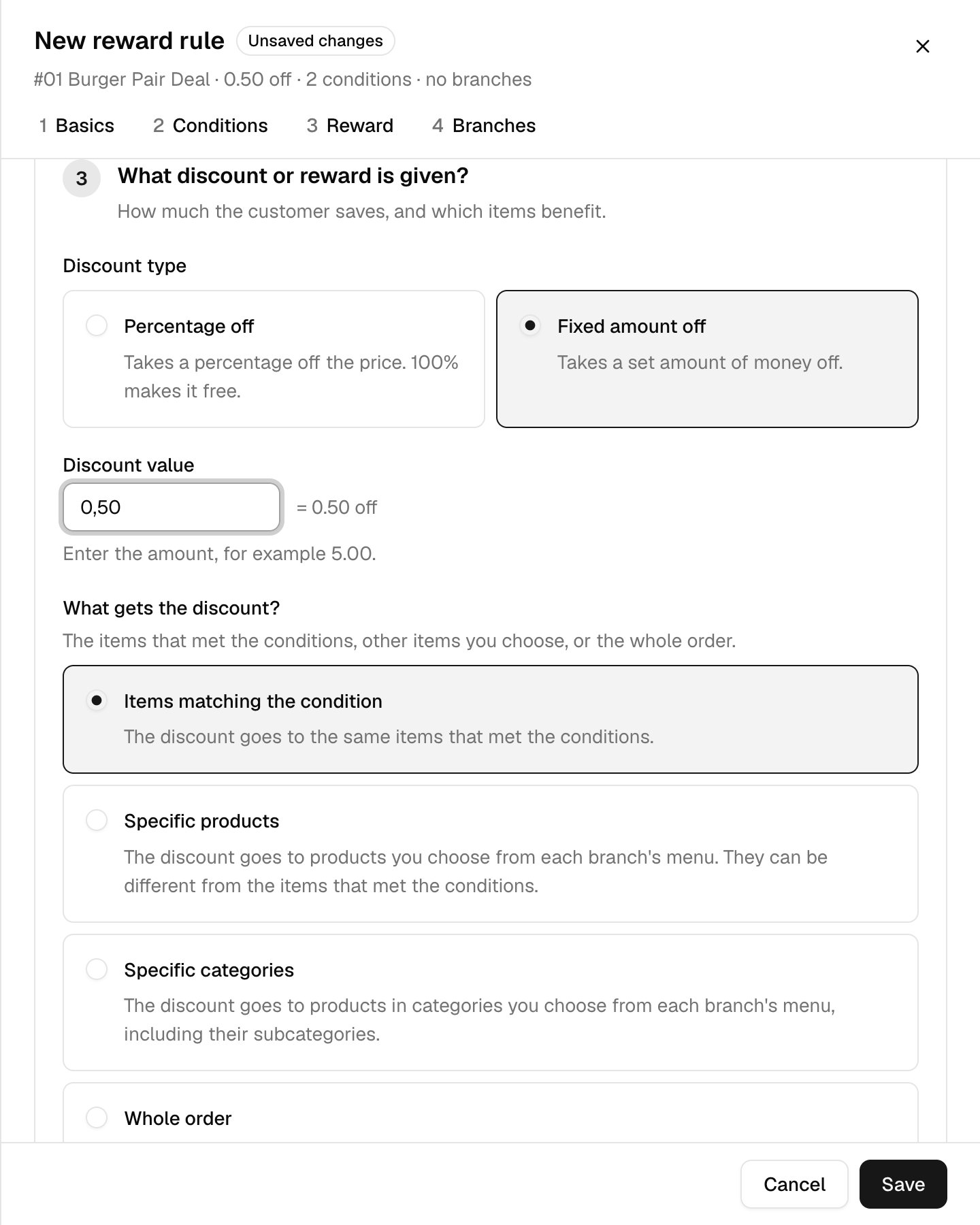
Step 3 is What discount or reward is given? Choose a Discount type:- Fixed amount off — takes a set amount of money off. For €0.50 off, type
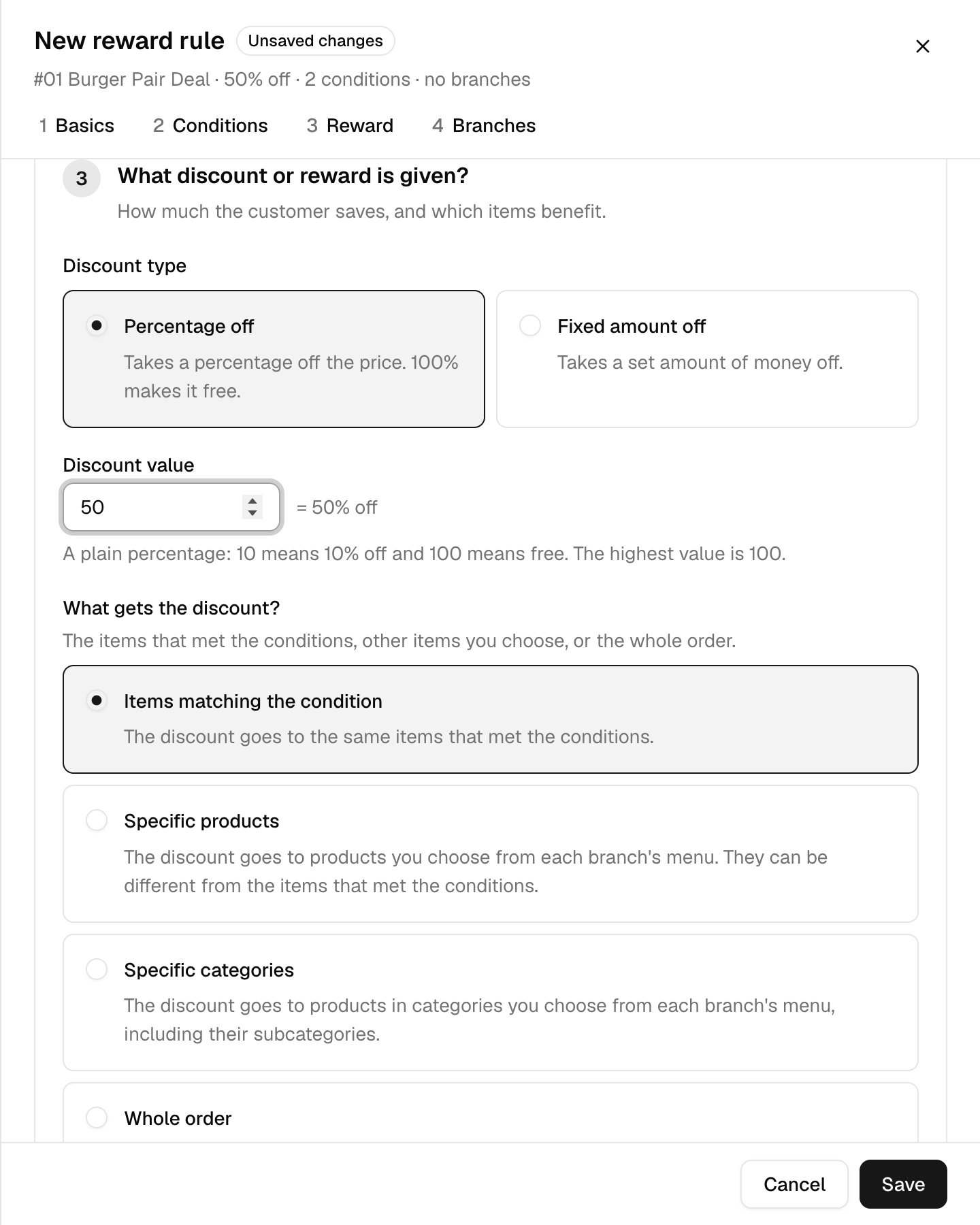
0.50(or0,50). The page shows= 0.50 offso you can check it. - Percentage off —
10means 10% off, and100makes the item free. The highest value is 100.
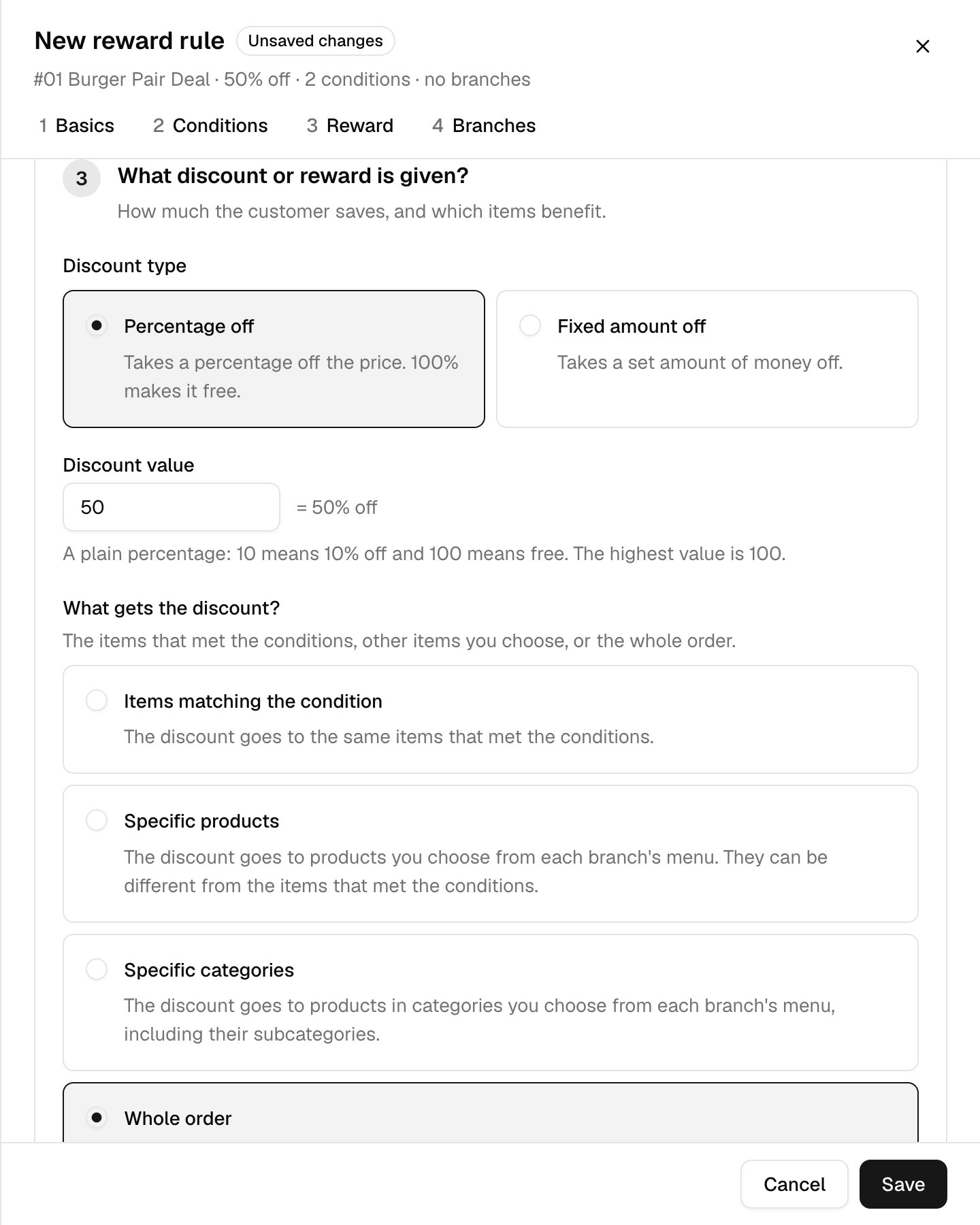
8. Choose what gets the discount
Under What gets the discount?, pick one:- Items matching the condition — the discount goes to the same items that met the conditions.
- Specific products — you choose the products from each branch’s menu in step 4.
- Specific categories — you choose the categories, including their subcategories.
- Whole order — the discount comes off the order total.
9. Set item and quantity limits
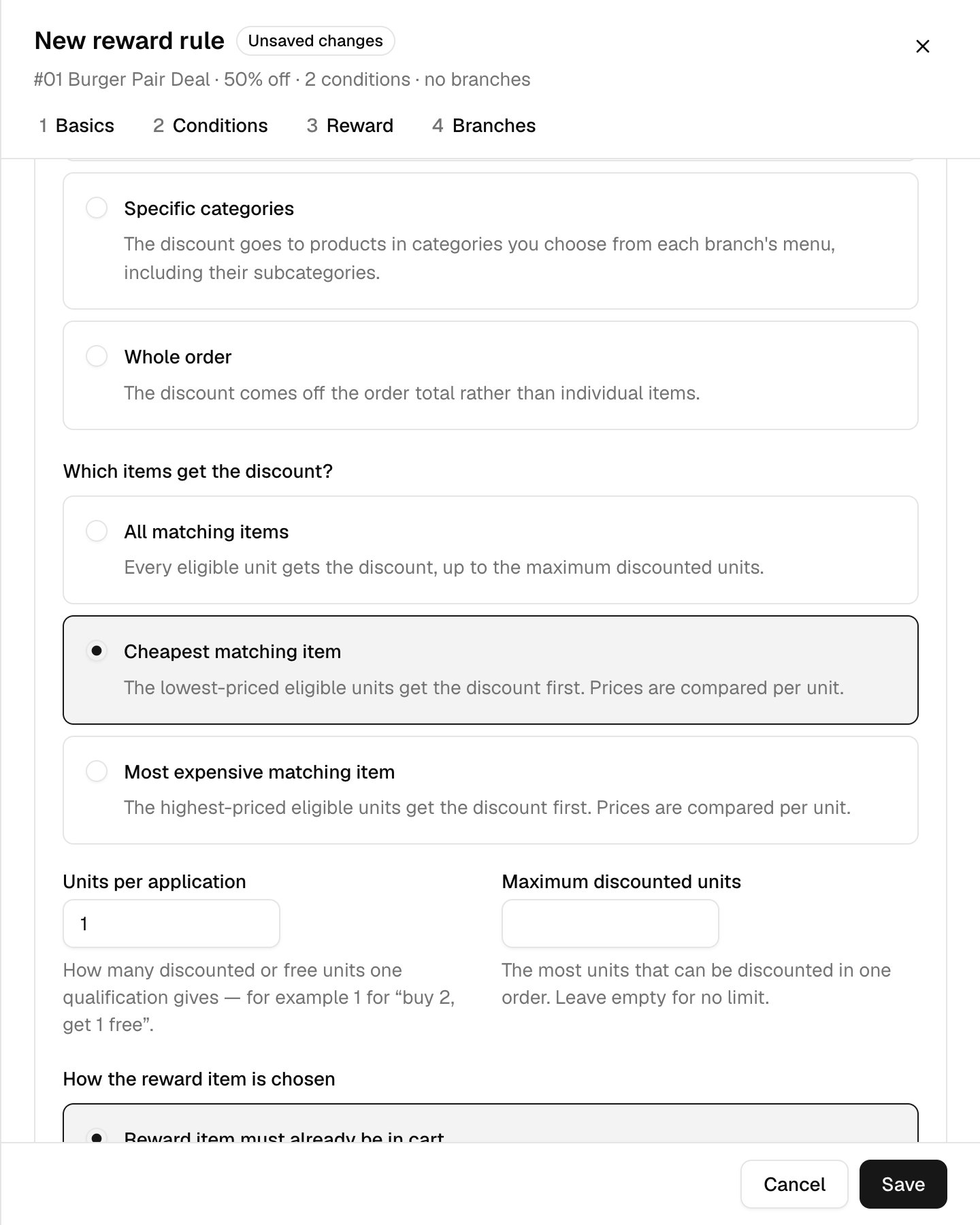
Under Which items get the discount?, pick one:- All matching items — every eligible unit is discounted, up to the maximum below.
- Cheapest matching item — the lowest-priced units are discounted first.
- Most expensive matching item — the highest-priced units are discounted first.
- Units per application appears when you choose cheapest or most expensive. It is how many discounted or free units one qualification gives. Use
1for “buy 2, get 1 free”. - Maximum discounted units caps how many units can be discounted in one order. Leave it empty for no limit.
- Reward item must already be in cart — the discount applies to eligible items the customer already added.
- Choose reward item — eligible items must be in the cart, and the customer picks which one gets the reward.
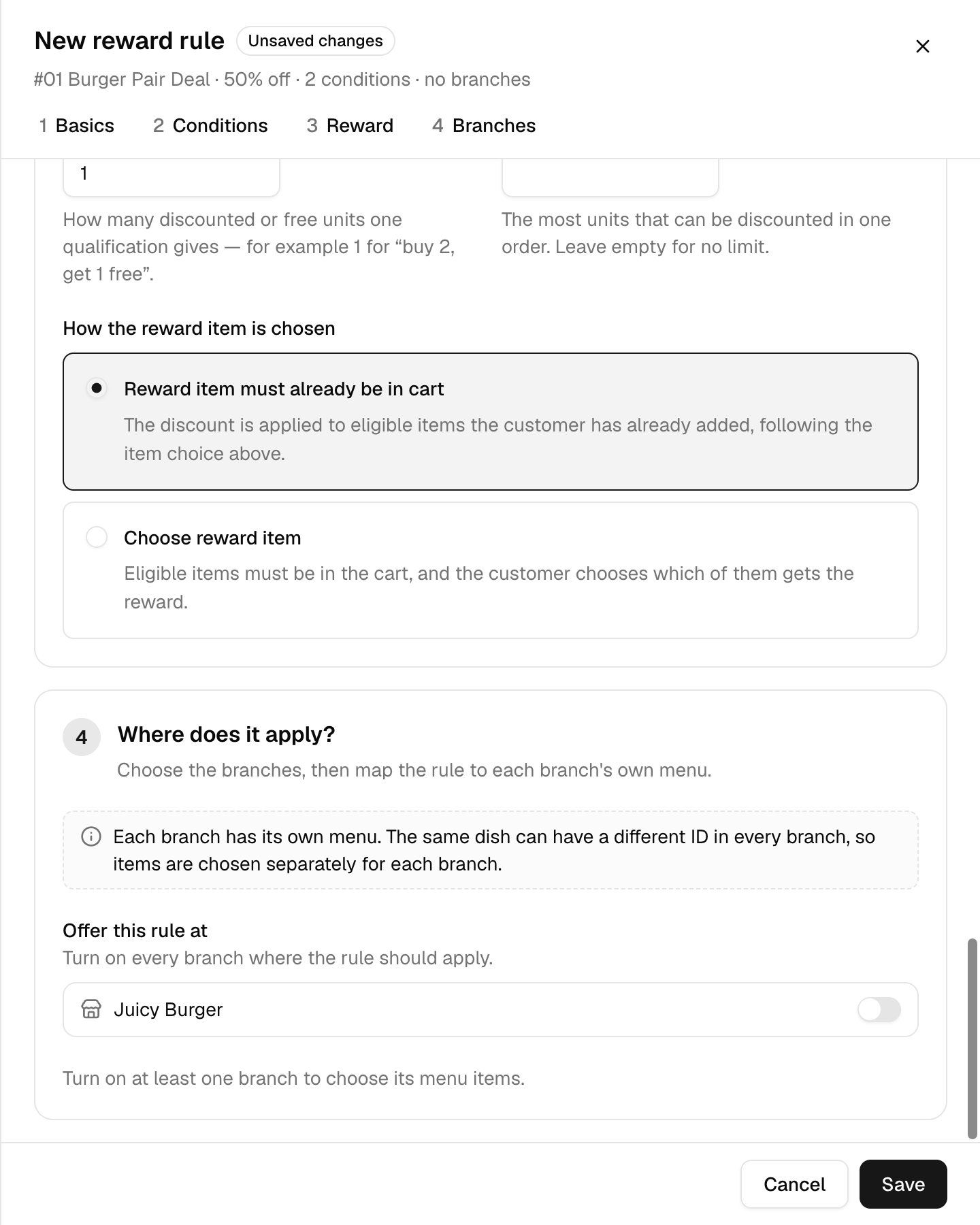
10. Choose the branches
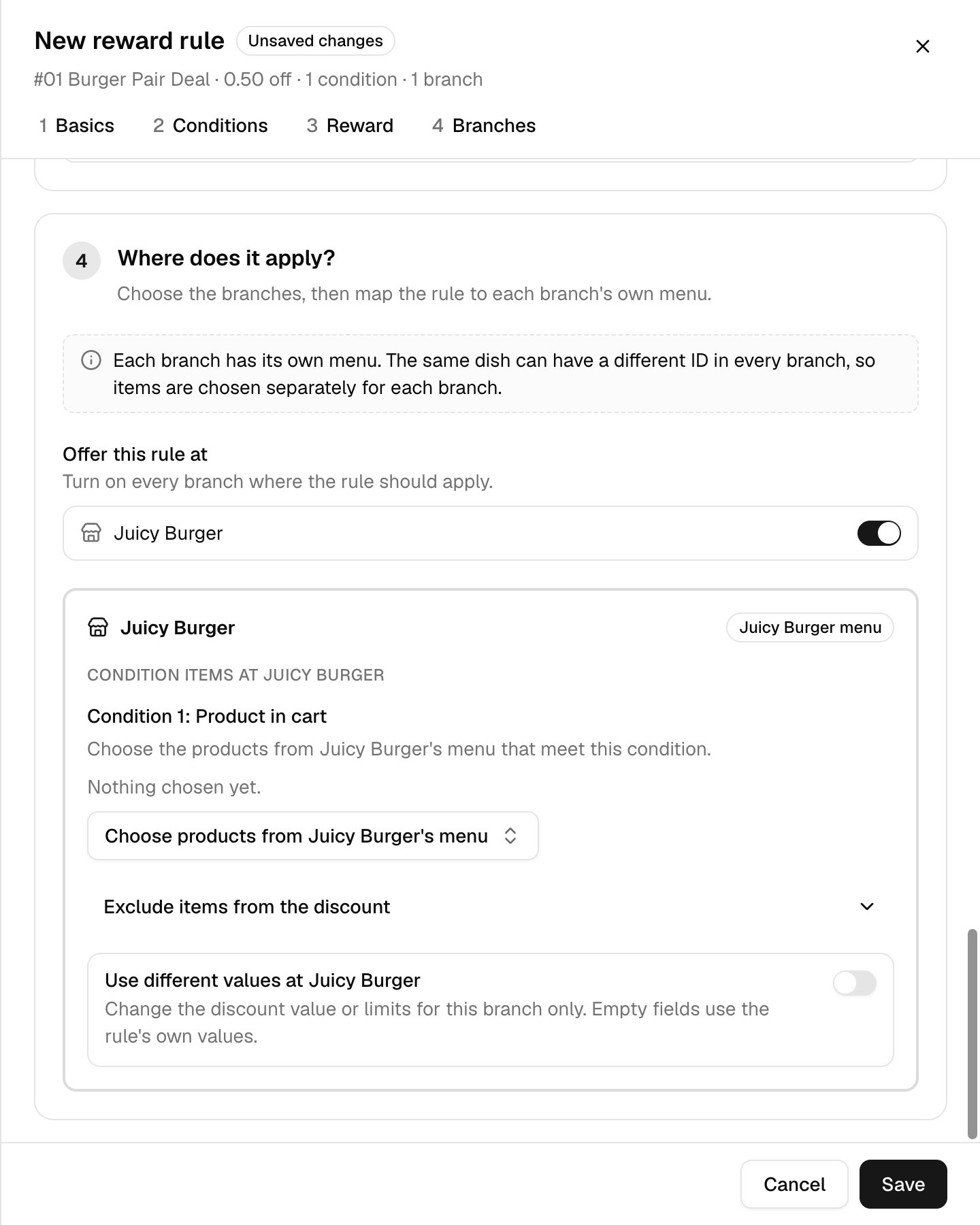
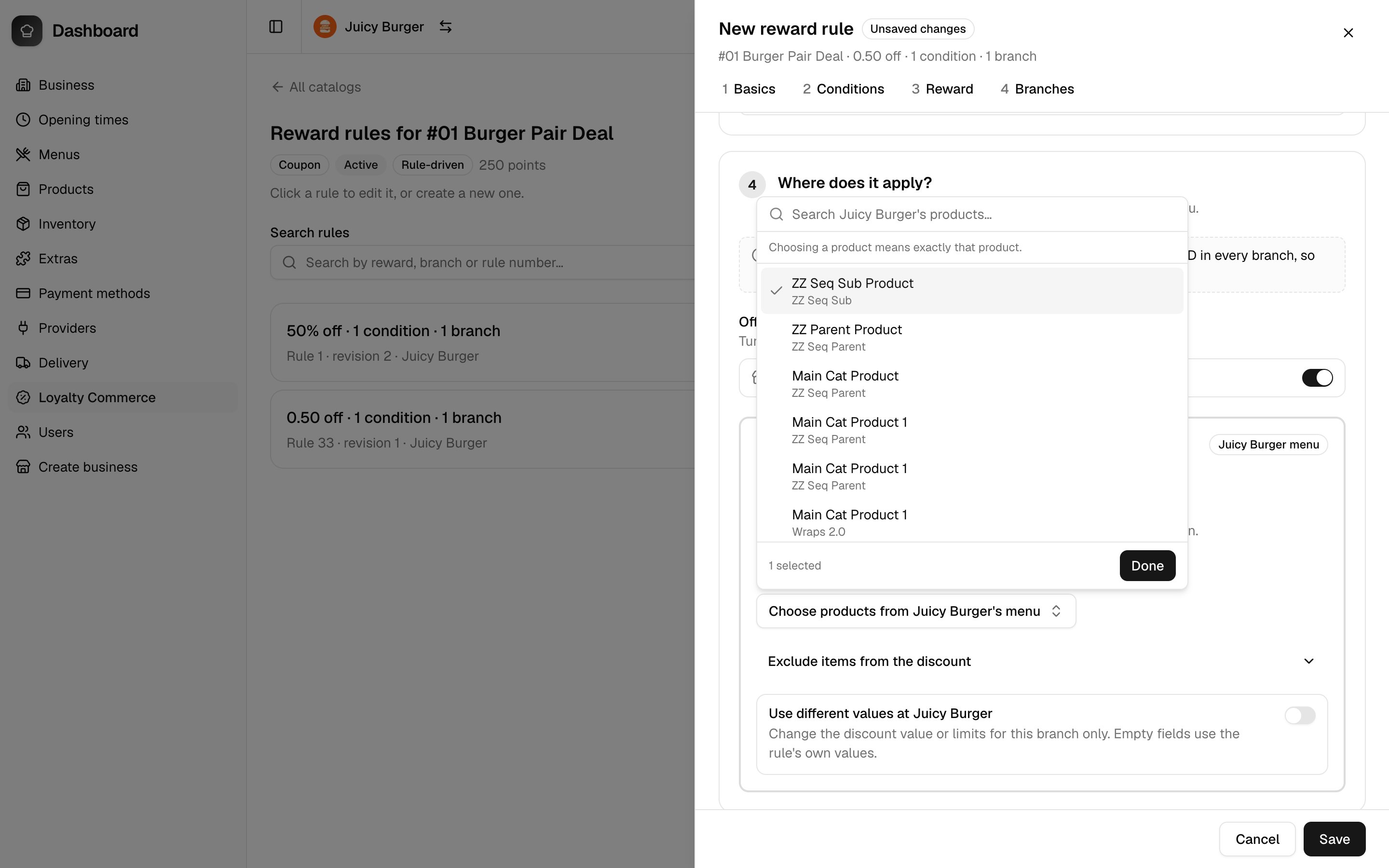
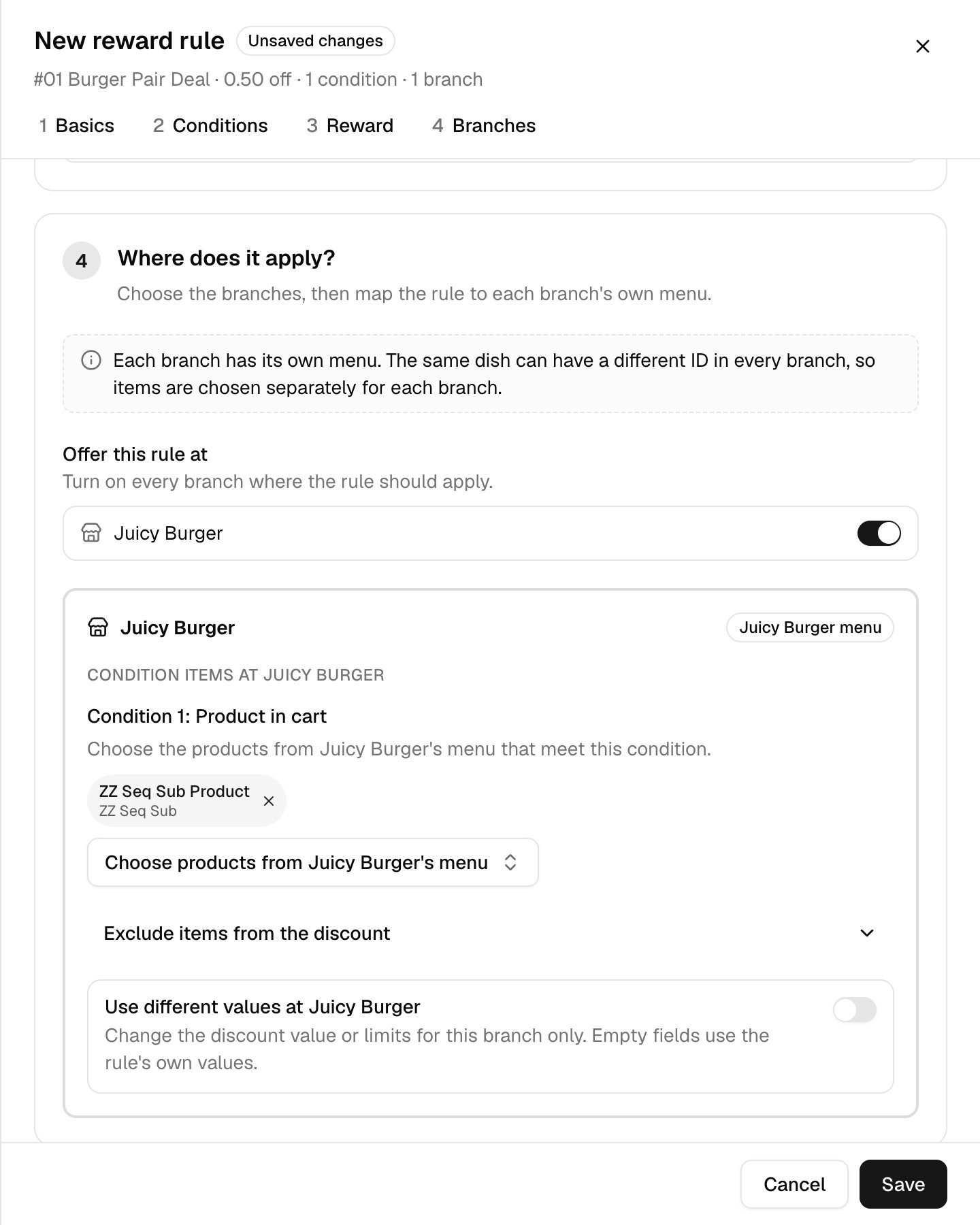
Step 4 is Where does it apply? Under Offer this rule at, turn on every branch where the rule should apply. Each branch has its own menu, so you choose items separately for each branch. For every branch you turn on, you’ll see:- Condition items — choose the products or categories that meet each condition.
- Reward items — if you chose Specific products or Specific categories, choose what gets the discount.
- Exclude items from the discount — items that never get the discount, even when they match.
- Use different values at this branch — change the discount value or the limits for that branch only. Empty fields use the rule’s own values.
In the menu picker, choosing a product means exactly that product. Choosing a category includes all of its subcategories and their products.
11. Save the rule
Click Save. You’ll see Reward rule created, and the rule appears in the list.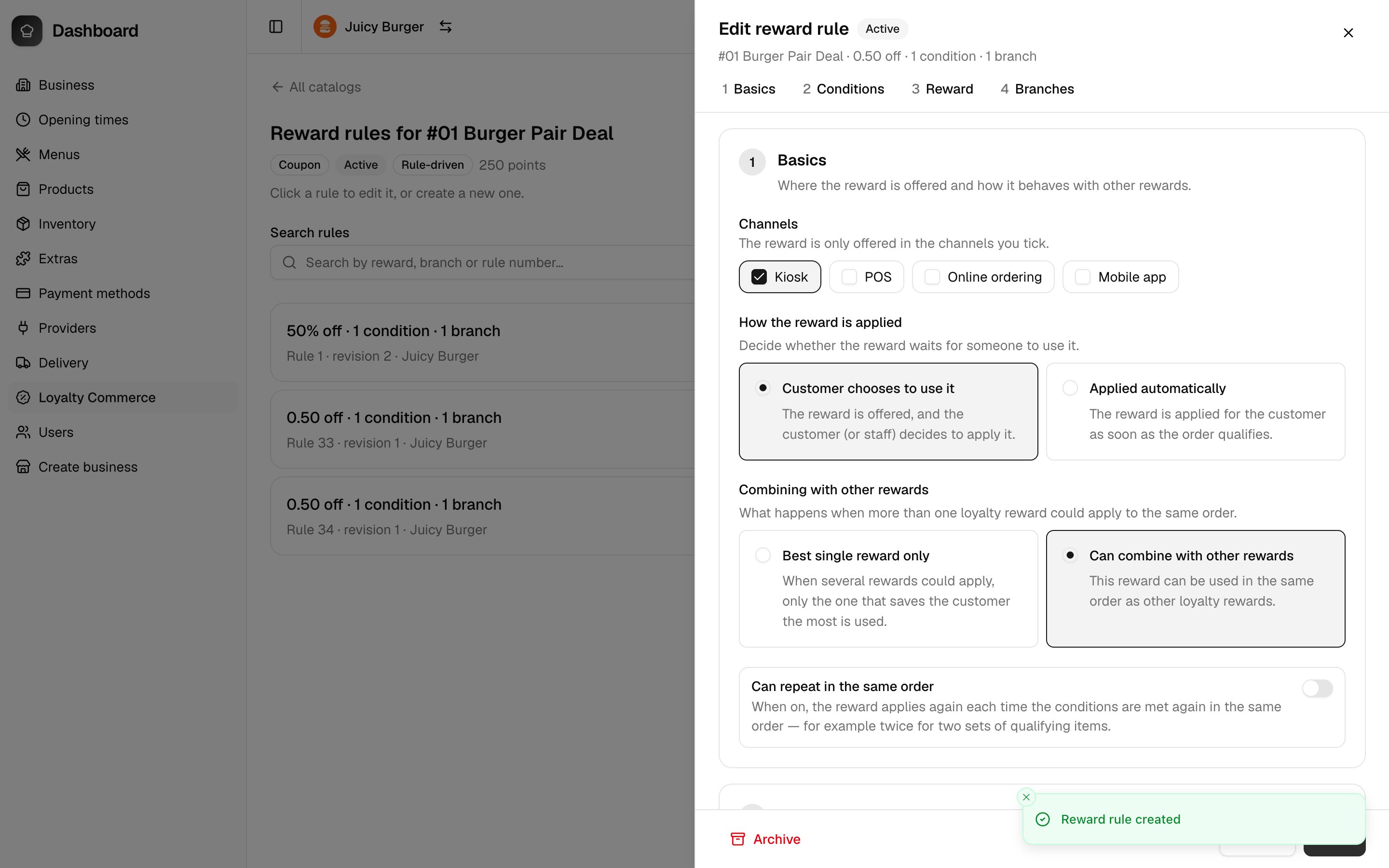
If the rule doesn’t save
If something is missing, you’ll see The rule couldn’t be saved. The problems are listed and marked on the step that needs fixing. Common messages:- Choose at least one channel.
- Add at least one condition.
- Turn on at least one branch.
- Choose items from <branch>‘s menu for <condition>.
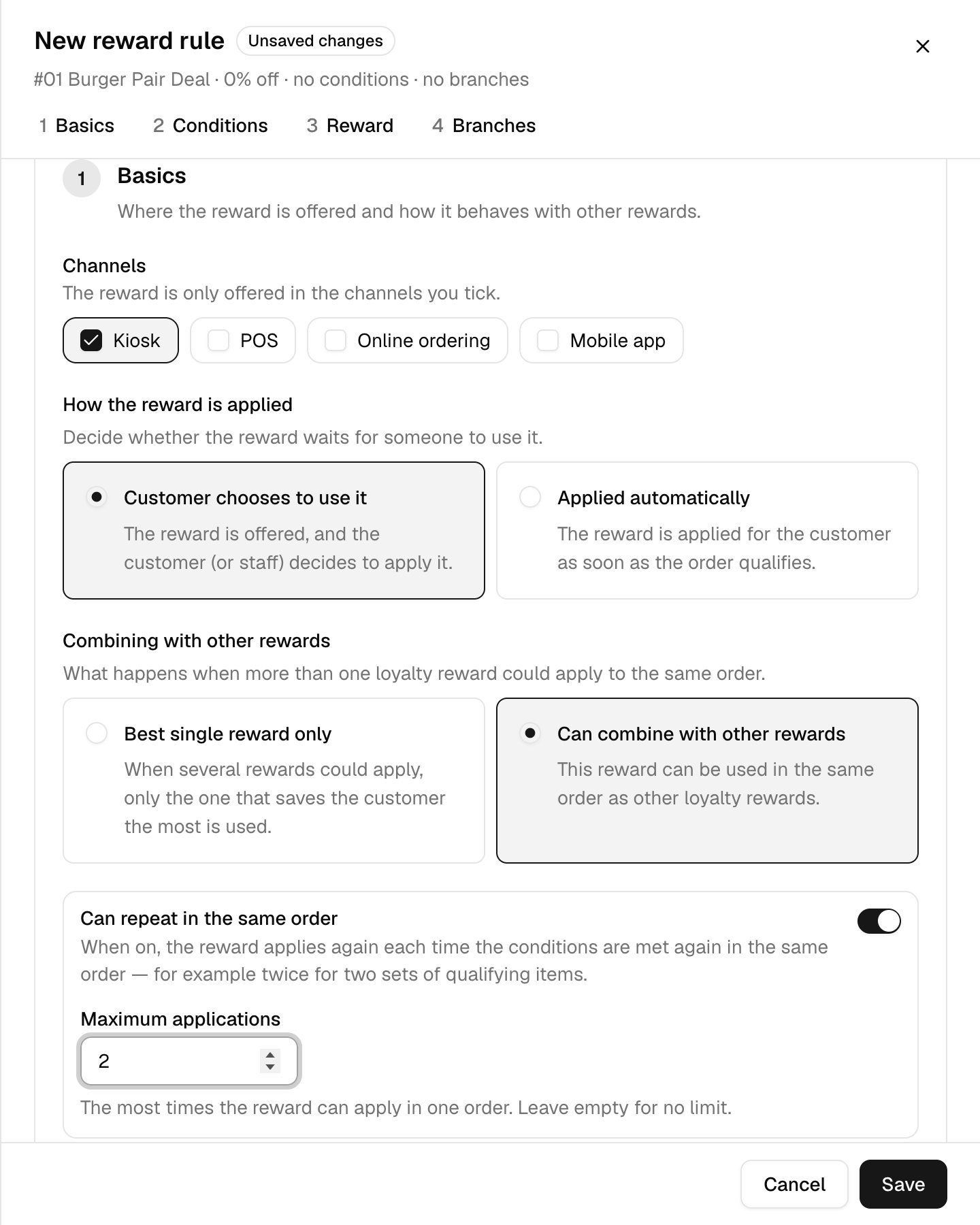
- Maximum applications can only be set when the reward can repeat.
- The minimum cart value can’t be higher than the maximum cart value.
Examples
€0.50 off one specific product
Condition Product in cart → discount Fixed amount off0.50 → target Items matching the condition → Maximum discounted units 1 → turn on the branch and pick the product.
50% off one selected product
Condition Product in cart → discount Percentage off50 → target Items matching the condition → Maximum discounted units 1 → pick the product for each branch.
A discount when a specific product is in the basket
Condition Product in cart (the product that must be there) → target Specific products (what actually gets the discount) → choose both lists for each branch.A discount when a selected category is in the basket
Condition Category in cart → any discount → target Items matching the condition or Specific categories. A category always includes its subcategories.Buy 2, get 1 free
Condition Product quantity in cart with Required quantity2 → discount Percentage off 100 → target Items matching the condition → Cheapest matching item → Units per application 1.
A reward when the cart reaches a minimum amount
Condition Minimum cart value, for example25.00 → discount Fixed amount off 5.00 → target Whole order.